





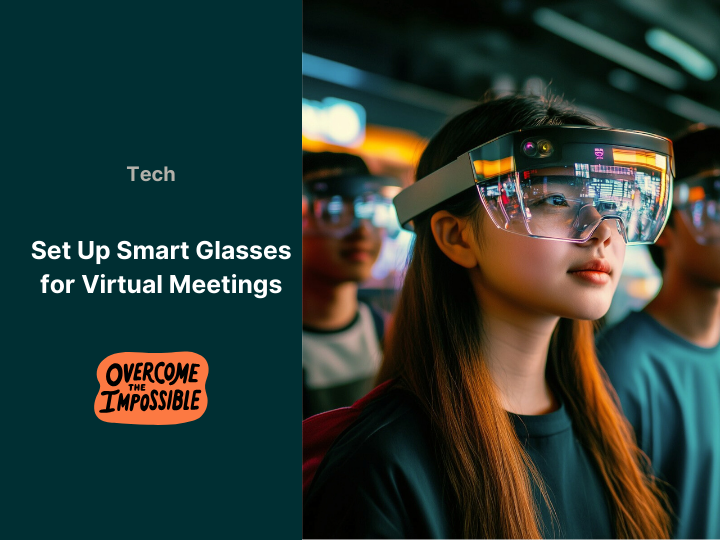
Have you ever found yourself fumbling through a virtual meeting, switching between screens, adjusting your headphones, or struggling to make eye contact with a tiny webcam? It’s exhausting and distracting. But there’s a smarter way — YES, you heard that right. Smart glasses are changing the game, making virtual meetings more seamless and engaging. By the end of this guide, you’ll have everything you need to set up and optimise your smart glasses for a truly immersive experience.
Why Choose Smart Glasses for Virtual Meetings?
Before diving into the setup, let’s explore why smart glasses can revolutionise your virtual meetings. These cutting-edge devices offer a hands-free experience with seamless integration of augmented reality (AR) elements, improving communication and efficiency.
- Gesture control and voice commands for intuitive interaction.
- Integrated cameras for enhanced video conferencing.
- Seamless synchronisation with your existing digital ecosystem.
According to market research, the global smart glasses market is projected to reach £10 billion by 2025, driven by corporate demand for innovative remote communication tools.
Smart Glasses Setup Guide
 Now that you’ve bought your ticket to the future, let’s embark on the setup journey. Follow these steps to ensure your smart glasses work perfectly during your virtual meetings.
1. Choose the Right Smart Glasses
First things first. With a plethora of smart glasses on the market, from brands like Google, Apple, and Microsoft, selecting the right pair can be daunting. Consider factors such as battery life, field of view, camera placement for privacy, and compatibility with your existing technology. Also, ensure they provide comfort for prolonged use.
2. Basic Setup and Connectivity
Once you’ve chosen your glasses, begin by fully charging them. Yes, it might seem basic, but you’d hate for them to run out mid-presentation. Next, sync them to your smartphone or computer — typically via Bluetooth or Wi-Fi. Dive into the manufacturer’s app for detailed instructions; trust us, this step is smoother than you might think! Ensure you update their firmware to the latest version. Not only does this bring additional features and improvements, but it also ensures your devices remain secure.
3. Integrate with Your Work Devices
Pairing smart glasses with your laptop or work setup enhances productivity. Ensure compatibility with apps like Zoom, Microsoft Teams, and Google Meet. Activate permissions for voice commands and gesture controls to streamline interactions. 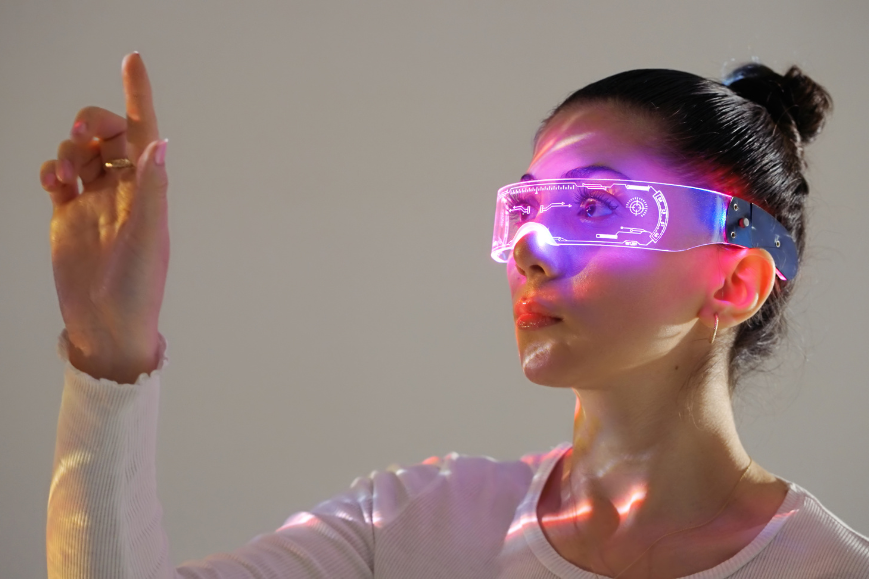
Optimising Smart Glasses for Virtual Meetings
Setting them up is just step one. To get the most out of your investment, you’ll want to optimise how they perform during your calls. Here’s how:
1. Ensure Comfortable Use
Comfort is key. Adjust the fit of your smart glasses so they sit comfortably on the bridge of your nose and behind your ears. Consider using any additional accessories provided, such as foam pads or alternative nose pieces if available.
2. Audio and Visual Adjustments
Although these glasses offer unrivalled tech, they must be tailored to your preferences. Test the audio levels, particularly if you plan to use them as headphones. Similarly, ensure the display settings suit your environmental lighting. You can often trust the sensors built into high-end models, but a manual adjustment might still be needed. Remember, good audio and video settings will keep your attention focused on the meeting content, not technical snags.
3. Utilise Built-in Features
Embrace the full potential of your smart glasses. Models today come with built-in cloud-based translation services, real-time data visualisation, and even facial recognition for attendee names — neat, right? Explore settings to activate these features and see how they can enhance your meeting experience.
Troubleshooting Common Issues
1. Connection Lags
If your display lags or the voice commands fail to trigger, it’s likely an issue with your network connection. Try:
- Restarting your router or moving closer to it.
- Using a wired ethernet connection for stability.
2. Battery Life Optimisation
Heavy use can see your glasses crave juice mid-meeting. To avoid this, charge them after meeting sessions and consider investing in a portable power bank. Most smart glasses will also allow you to adjust settings which can help extend battery life, such as lowering brightness or switching off unnecessary features during meetings.
3. Regular Software Updates
Smart glasses, much like our smartphones, love their updates. These patches often fix bugs and bring new features. Make it a habit to check for these regularly, ensuring continuity in your experience.
Making Smart Glasses Work for You
Smart glasses offer a transformative way to conduct virtual meetings, blending real and digital interactions seamlessly. By setting them up correctly and optimising their features, you can ensure a smooth, productive, and futuristic meeting experience.  Smart glasses aren’t just a cool gadget — they’re a productivity tool. Set yours up right and experience the future of communication, today.